

If you use Jira for project and issue tracking and Cursor for code, you can give Cursor’s AI direct access to Jira via the Model Context Protocol (MCP). That means creating issues, listing projects, adding comments, assigning work, and transitioning status from natural language in the editor — without switching to Jira. This guide shows how to set up a Jira MCP server and connect it to Cursor using Latenode: you deploy the Jira MCP scenario as an MCP server on Latenode, then add that server to Cursor so the AI can call Jira tools from chat.
Key takeaways:
- Jira MCP (Jira + Model Context Protocol) lets AI clients like Cursor talk to Jira through a standard protocol. A Jira MCP server exposes Jira actions (create/update/get issue, list projects, comments, assign, transition) as tools the AI can call.
- You can deploy a free MCP server for Jira on Latenode: use the Jira MCP template (or build your own scenario with MCP Trigger + Jira nodes), then copy the Server URL and add it in Cursor.
- MCP for agent workflows keeps code and project management in one loop: ask Cursor to “create a Jira issue for this bug” or “list my projects” and the MCP server runs the right Jira actions and returns the result.
What is Jira MCP and why use it with Cursor?
Jira is Atlassian’s project management and issue tracking tool — teams use it to plan, track, and release work, with customizable workflows, dashboards, and agile support. Model Context Protocol (MCP) is a standard that lets AI systems call external tools (databases, APIs, or in this case Jira) through a well-defined interface. A Jira MCP server is a service that exposes Jira operations — create issue, get issue, update issue, list projects, add comment, list comments, assign issue, transition issue, and more — as tools that an MCP server AI client can discover and invoke.
Cursor is an MCP-compatible client. When you connect a Jira MCP server to Cursor, the AI in your editor can:
- List projects
- Create, get, or update issues
- Add or list comments on issues
- Assign issues and transition them (e.g. In Progress → Done)
- List transitions for an issue
So you stay in Cursor and use natural language to manage Jira — handy for AI agent MCP workflows where the agent needs to create tickets, check status, or add feedback without leaving the IDE. You get agent MCP behavior: one AI surface (Cursor) with Jira as a set of tools behind it. The same idea applies to other MCP server setups (e.g. a git MCP server for version control); here the model context protocol connects Cursor to Jira.
Free Jira MCP server on Latenode
You don’t have to host the MCP server yourself. Latenode lets you deploy an MCP server in the cloud: you build (or use) a scenario that talks to Jira and expose it via the MCP Trigger node. That gives you a Server URL you can paste into Cursor, Claude Desktop, or any MCP for agent-compatible client. So you get a free MCP server for Jira in the sense that Latenode runs it; you only need a Latenode account (free tier available) and your Jira credentials in the scenario.
Jira MCP template: what it does
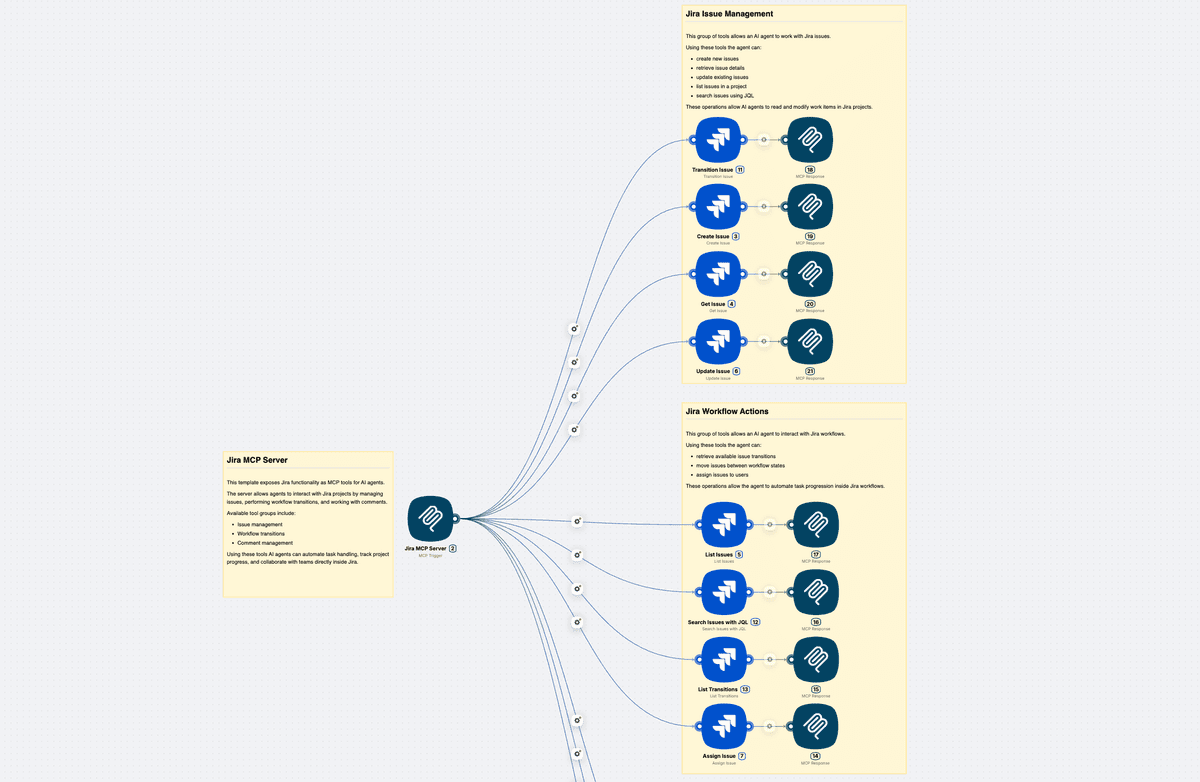
We’ve prepared a template that shows how to manage your Jira projects and issues from AI chat like Cursor or Claude. Create or update issues, list projects, get issue details, add or list comments, assign issues, and transition status—all via natural language. No need to leave your editor or open Jira.
What’s inside the template?
When you connect this Latenode scenario as an MCP server to Cursor (or another MCP-compatible client), the AI gets tools to interact with Jira.
Available tool groups include:
- Issue management
- Workflow transitions
- Comment management
The scenario runs the right Jira actions and returns the result to your chat. So in Cursor you can say things like “create a Jira bug for the login timeout” or “list my Jira projects” or “add a comment to issue PROJ-123: fixed in main” and the Jira MCP server handles the rest. This is the same idea as other MCP server AI setups—your AI agent MCP (Cursor) uses the model context protocol to call a remote MCP server (Latenode + Jira).
How to set up the Jira MCP server in Latenode
Setting up the Jira MCP server in Latenode follows the same pattern as any MCP server on Latenode: you create a scenario, add an MCP Trigger, and connect Jira actions as tools.
- In Latenode, open the Jira MCP template.
- The template already has an MCP Trigger and Jira nodes wired as tools (e.g. list projects, create issue, get/update issue, add comment, list comments, assign, transition).
- Authorize Jira in the scenario (connect your Jira account in the Jira node).
- Save the scenario.
- Open the MCP Trigger node and copy the Server URL. You’ll paste this into Cursor in the next section.
- If the template has Authentication enabled on the MCP Trigger, copy or note the API key as well; Cursor will need it when connecting.
How to connect the Jira MCP server to Cursor
Once your Jira MCP server is running in Latenode and you have the Server URL, connect it to Cursor so the AI can use the Jira tools.
- Open Cursor.
- Go to Settings (gear icon or Cursor → Settings).
- Find MCP (or MCP Servers / Tools).
- Click Add server (or equivalent).
- Paste the Server URL you copied from the Latenode MCP Trigger.
- If your Latenode scenario has Authentication enabled, enter the API key when Cursor prompts for auth.
- Save and confirm the connection.
- Open the tools list in Cursor and verify that your Jira tools (e.g. list projects, create issue, add comment) are visible.
After that, you can ask Cursor in natural language to list Jira projects, create an issue, get or update an issue, add a comment, assign work, or transition status—and the Jira MCP server will run the actions and return the results. For full reference, see Connecting to MCP Tools in the Latenode docs.
Summary
- Jira MCP = Jira exposed via the model context protocol so AI clients can call Jira operations as tools.
- Jira MCP server = the service that exposes those tools (e.g. list projects, create/update/get issue, comments, assign, transition).
- You can deploy a free MCP server for Jira on Latenode using the Jira MCP template or your own scenario with MCP Trigger + Jira nodes.
- Connect it to Cursor by adding the Latenode Server URL (and API key if required) in Cursor’s MCP settings.
- Then use MCP for agent workflows in Cursor: the AI can manage Jira issues and projects via natural language.
Deploy your Jira MCP server on Latenode
Use the Jira MCP template to give Cursor (or Claude, or any MCP-compatible client) direct access to Jira through the model context protocol. One MCP server, one Server URL, no infrastructure to maintain.