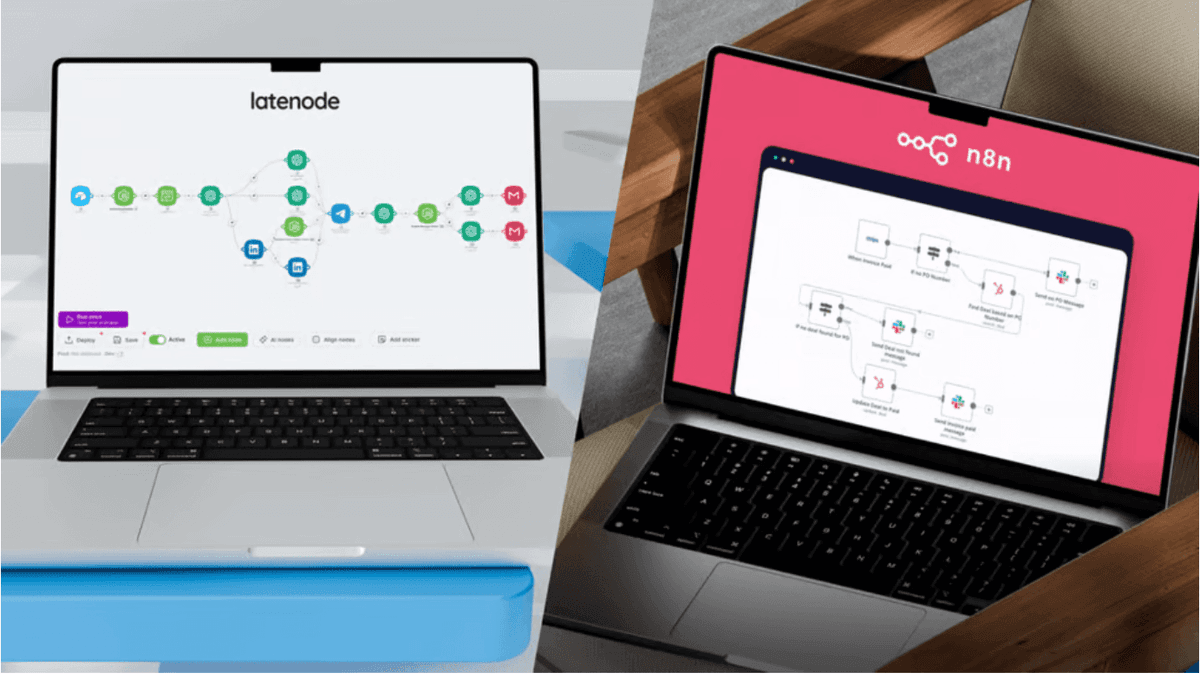
Automate Content Repurposing for Social Media with Latenode AI
Learn how to build an AI-powered workflow to automatically turn blog posts into LinkedIn updates, Tweet threads, and Instagram captions using Latenode.


Introduction
You just spent four hours writing a deep-dive blog post. It's polished, insightful, and finally live. But now the real work begins: you need to dismantle that masterpiece into a LinkedIn post, a Twitter thread, an Instagram caption, and a newsletter blurb.
Most marketers hit a bottleneck here. They either copy-paste the link (which social algorithms hate) or spend another two hours rewriting content manually. This is where content repurposing automation changes the game. By building an intelligent workflow, you can "hire" AI agents to handle the restructuring and formatting for you, instantly turning one asset into a week's worth of engagement.
In this guide, we will treat your content engine like code. You will learn how to build a fully automated system that detects new blog posts, analyzes them with premium AI models (without extra fees), and formats them for specific social channels—all within minutes.
Before diving into the build, it helps to understand the landscape of tools available. While we will focus on building a custom workflow, you can explore the best generative AI tools to see how the ecosystem is evolving in 2025.
Why Automate Content Repurposing with AI?
The philosophy is simple: Create once, distribute everywhere. However, the manual execution of this philosophy is exhausting. The problem isn't the distribution; it's the recontextualization.
The Anatomy of Effective Repurposing
A blog post introduction does not work as a LinkedIn hook. A standard paragraph is too long for X (formerly Twitter). To repurpose effectively, you need intelligence, not just data transfer.
- The Problem: Writing is high-effort. Creating 5-10 derivative pieces of content from one source usually requires an additional 1-2 hours of manual creative work.
- The AI Solution: We don't just want to "summarize." We want AI agents to restyle content. We need a professional tone for LinkedIn and a conversational, punchy tone for X.
Why Latenode for This Workflow?
You might be wondering why you shouldn't just use a standard connector tool. The answer lies in architecture and cost. Most automation platforms charge you per "step" or "task," meaning a complex chain of AI reasoning becomes expensive very quickly.
Furthermore, standard platforms often require you to bring your own API keys. You pay for the automation subscription plus a separate bill to OpenAI or Anthropic. Latenode is different. It is a flexible alternative to Zapier because it provides unified access to models like Claude 3.5 Sonnet and GPT-4o directly within your subscription.
| Feature | Latenode | Standard Automation Tools (e.g., Zapier) |
|---|---|---|
| AI Access | Included (No API key needed) | Requires separate OpenAI/Anthropic subscription |
| Cost Model | Pay for compute time (cheaper for complex logic) | Pay per task/step (expensive for loops) |
| Coding | Full JavaScript + AI Copilot | Limited Python/JS support |
| Complexity | Unlimited branching & parallel execution | Linear paths often struggle with complexity |
The Psychology of Platform-Specific Content
To win at content repurposing automation, you must respect "Native Content." Platforms reward zero-click content—posts that deliver value without forcing the user to leave the app immediately.
- LinkedIn: Requires a strong hook, whitespace for readability, and a clear value proposition in the first three lines.
- X (Twitter): Requires threading logic. Ideas must be atomic—one idea per tweet.
- Instagram: Needs a caption that encourages saving or sharing, plus a block of generated hashtags.
Prerequisites for This Automation Workflow
To follow this tutorial, you will need a few things ready. We are keeping friction low, so you can build this in about 20 minutes.
- Latenode Account: A Free or Start plan is sufficient. Both give you access to the AI models we need.
- Source Content: A WordPress site (using RSS) or any blog with a valid RSS feed.
- Social Tool (Optional): We will simulate sending data to a scheduler like Buffer or Metricool via HTTP request.
If you haven't set up your workspace yet, check the Latenode quick start guide to get familiar with the interface.
Step 1: Setting Up the Blog Trigger
First, we need to tell Latenode when to wake up. We do this using a Trigger node that watches for new content.
Configuration
Create a new Scenario in Latenode. For the trigger, we will use the generic RSS node. This is often the easiest way to capture blog data without complex API setups.
- Add Trigger: Search for "RSS" and select "New Item in Feed."
- Input URL: Paste your blog's RSS feed URL (usually `yourdomain.com/feed` or `yourdomain.com/rss`).
- Frequency: Set how often you want Latenode to check for new posts (e.g., every 30 minutes).
If you are aggregating content from multiple sources, you might also consider integrations with RSS sources like Feedly to pull industry news for curation, rather than just your own posts.
Testing the Trigger
Click "Run Once." Latenode will fetch the latest item from the feed. You should see a data output containing variables like `title`, `description`, `content`, and `link`. We will map these variables into our AI agent in the next step.
For a visual walkthrough of setting up these initial nodes, this step-by-step automation guide is an excellent resource.
Step 2: Configuring the AI Content Agent
This is where the magic happens. We will use Latenode's built-in AI capabilities to act as our expert copywriter. Unlike other platforms where you might string together five different "text formatter" steps, we can do it all in one intelligent node.
Selecting the Model
Add an "AI Node" (LLM) to your canvas. When integrating AI agents in Latenode, you have a choice of models. For creative writing and nuance, Claude 3.5 Sonnet is often superior to GPT-4o, though Latenode gives you access to both.
Designing the System Prompt
The quality of your output depends entirely on your prompt. We want the AI to return a structured JSON object so we can separate the LinkedIn post from the Tweet thread later.
Copy this prompt into the System Instruction field:
You are an expert social media manager and copywriter. I will provide you with the full text of a blog post. Your job is to repurpose this content for three different platforms.
Output Format:
You must return a valid JSON object strictly following this structure:
{
"linkedin_post": "The text for LinkedIn...",
"twitter_thread": ["Tweet 1", "Tweet 2", "Tweet 3", "Tweet 4", "Tweet 5"],
"instagram_caption": "Caption text...",
"hashtags": "#tag1 #tag2 #tag3"
}Instructions:
1. LinkedIn: Professional but engaging. Start with a hook/question. Use short paragraphs. End with a CTA to read the article.
2. Twitter Thread: Break the key concepts into 3-5 punchy tweets. The first tweet must differ from the LinkedIn hook.
3. Instagram: Focus on the "big idea" or emotional angle. Keep it under 100 words.Do not include markdown formatting (like ) outside the brackets. Return ONLY the JSON.
Handling Data Transformation
Once the AI generates the text, it comes back as a string. We need to parse this into usable variables. In traditional coding, this requires writing a `JSON.parse()` function.
In Latenode, you can use the JavaScript node combined with AI Copilot. You don't need to know how to code; you just need to ask.
Open a JavaScript node and type this into the AI Copilot chat: "Parse the input string from the previous node as JSON and return the objects."
The Copilot will write the code for you. This functionality—being able to turn a plain English request into working code—is what makes Latenode powerful for custom data handling without a computer science degree.
Step 3: Distributing Content to Social Channels
Now that your JavaScript node has outputted clean variables (e.g., `data.linkedin_post`), we can route them to their destinations. Latenode allows for parallel branching, meaning we can send data to LinkedIn, X, and Instagram simultaneously.
Connecting to LinkedIn (via Buffer or API)
The easiest way to schedule this content is to send an HTTP Request to a scheduling tool like Buffer or Metricool, or use a specific Latenode integration node if available.
- Add a new node extending from your specific branch.
- Select "HTTP Request."
- Map the `linkedin_post` variable from your Parser node into the "Body" of the request.
If you are looking to expand your reach even further, you can automate Reddit posts as well. You could add another branch to your workflow that asks the AI to generate a discussion-starting question based on the blog post, suitable for posting in relevant subreddits.
Creating the Twitter/X Thread
Since our AI returned an array of tweets (a list), we handle this slightly differently. If you are using a tool that supports thread scheduling via API, you send the array entirely.
If you need to post them sequentially, you can use Latenode's Iterator node. This node takes the list of tweets and runs a subsequent action for each item in the list—perfect for chaining tweets together.
Step 4: Adding a Human Review Step (Optional)
A common fear with content repurposing automation is the "AI Hallucination." What if the AI misinterprets your blog and posts something incorrect?
To solve this, we add a "Human-in-the-Loop" step. Instead of posting directly to social media, we send the content to Slack first.
- Slack Node: Configure a message that says "New Blog Post Detected. Here are the generated drafts."
- Display Content: Print the generated LinkedIn and Twitter drafts in the Slack message.
- Interactive Buttons: Add two buttons to the message: "Approve" and "Reject."
- Webhook Wait: The workflow will pause and wait for you to click a button in Slack. If you click "Approve," the workflow continues to the HTTP Request nodes to publish the content.
This gives you the speed of AI with the safety of human oversight.
Troubleshooting Your Content Workflow
Even the best workflows encounter edge cases. Here are common issues and how to fix them using Latenode's toolkit.
Handling HTML Tags in RSS
RSS feeds often contain raw HTML tags like `
` or ``. If you feed this raw code into an AI model, it wastes tokens and might confuse the output.
- Solution: Use the Text Helper node in Latenode to "Strip HTML." Alternatively, ask the AI Copilot in a JavaScript node to "Remove all HTML tags from this string using Regex."
JSON Formatting Errors
Sometimes the AI gets chatty and adds "Here is your JSON:" before the actual code. This breaks the parsing step.
- Solution: Reinforce the system prompt with "Do not output any conversational text." You can also use a "Repair JSON" script via Copilot if the error persists.
Frequently Asked Questions
Do I need my own OpenAI API key to use this?
No. One of Latenode's biggest advantages is that access to models like GPT-4 and Claude is included in your subscription plan. You do not need to manage separate billing or API keys for the AI models used in this tutorial.
Can I automate images as well as text?
Yes. You can add a step using an image generation model (like DALL-E, available in Latenode) to create visuals based on your blog content. For more complex visual tasks, you can even build AI image analysis workflows to analyze your blog's existing header image and resize specifically for Instagram.
How much does this workflow cost in credits?
Latenode charges based on compute time, not just "steps." Since the AI processing happens quickly, a text repurposing workflow is very efficient. You could process dozens of blog posts per month even on the Start plan, making it significantly cheaper than hiring a VA or using per-task pricing models.
Can I schedule posts for specific times?
Yes. You can use the "Delay" node within Latenode to hold content until a specific time, or (recommended) send the content to a dedicated scheduling tool like Buffer or Metricool which handles the optimal timing for you.
Is this better than using ChatGPT manually?
Yes, because it is passive. With manual ChatGPT, you have to remember to copy the text, write the prompt, and paste the result. This automation runs in the background the moment you hit "Publish" on your blog, ensuring you never forget to distribute your content.
Conclusion
By automating your content repurposing, you successfully move from being a content writer to a content architect. You have built a system that takes a single input (your blog) and amplifies it across the web without additional manual effort.
The beauty of building this in Latenode rather than a rigid tool is flexibility. If you decide tomorrow that you want to change your LinkedIn tone or add a Reddit distribution channel, you simply drag a new node onto the canvas.
When you compare to Make and Zapier, you'll find that the ability to utilize advanced AI models without API keys, combined with the power of custom code via Copilot, makes Latenode the superior choice for modern, AI-driven marketing workflows. You save time on the work, and you save money on the subscription.