

If you found this by searching "ChatGPT MCP not working" or "where is the MCP option in ChatGPT," you're in the right place. What looks like a broken feature is almost always one of three things: Developer Mode is off, the connector URL is wrong, or you saved the connector and assumed it was active. It isn't.
This guide walks through the full setup sequence in order, with the specific failure modes that fill support queues at every step. Getting an MCP server talking to ChatGPT requires three things done right, in sequence: Developer Mode on, connector configured correctly, and the connector re-enabled per chat. Most failures happen at steps one and three.
Before this becomes a ticket
- Developer Mode must be enabled before any MCP connector option appears in the UI.
- Auth mode must match the server's actual authentication-mismatches produce silent rejections.
- A saved MCP connector is not active in any chat until you explicitly turn it on per session.
- Tool calls require manual user confirmation; the model waits, silently, if you don't confirm.
What Model Context Protocol Actually Does Inside ChatGPT
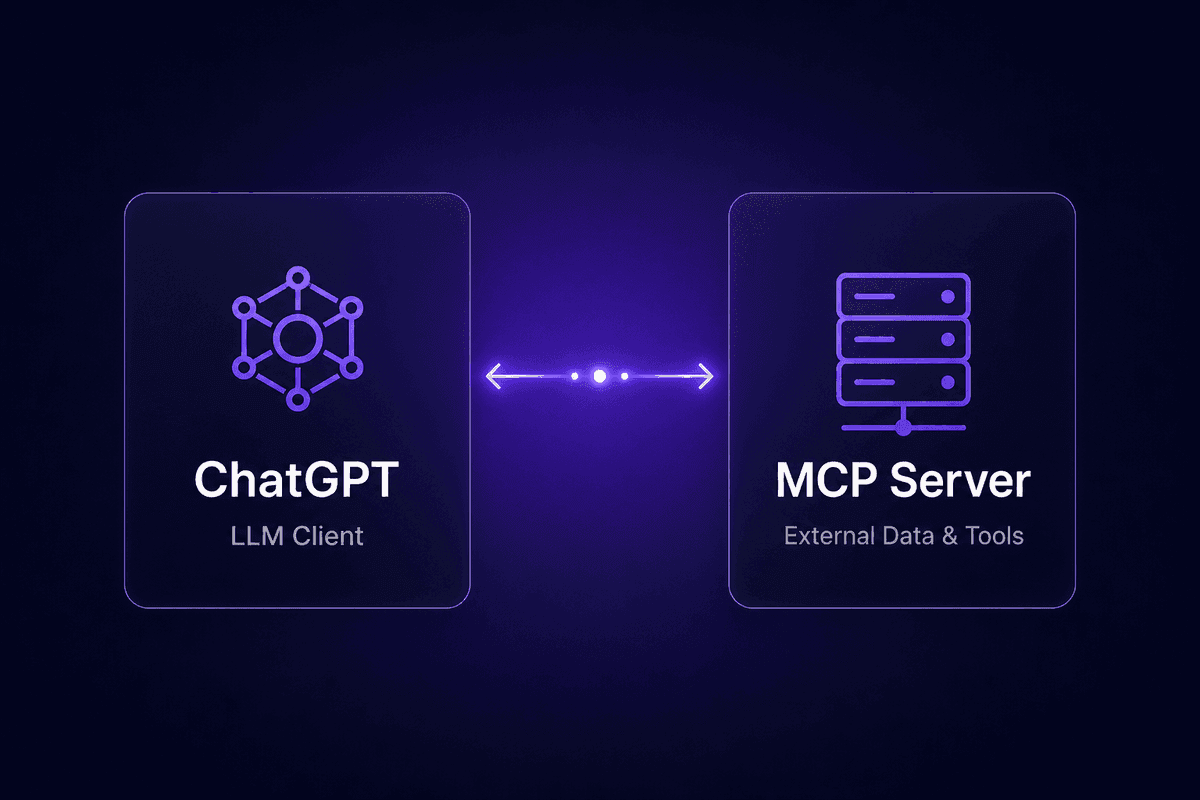
Model Context Protocol (MCP) provides full model context protocol access to external tools and live data from a connected server. In plain terms: instead of ChatGPT relying only on what it learned during training, MCP lets the model reach out to an external system mid-conversation and pull or act on real data.
MCP provides a standardized way for AI models and LLMs to communicate with external services. It originated at Anthropic as an open standard, and OpenAI has implemented it inside ChatGPT. This matters because you'll see MCP references across Claude, Cursor, and now ChatGPT. They share the protocol, but the configuration surfaces are completely different. What works in Claude Desktop doesn't automatically transfer to ChatGPT's connector settings. Treat them as separate setups using the same underlying language.
Practically, what MCP unlocks inside ChatGPT is this: you connect a server, and the model can now call that server's tools, read live records from it, or execute actions on it, depending on what the server exposes. The model doesn't guess. It queries. That's the functional difference between a connected workflow and a very confident hallucination.
What You Need Before You Configure Anything
Skipping any item on this list means you'll hit a wall mid-setup. Each entry below includes why it matters and what the missing piece looks like in practice.
A qualifying ChatGPT plan
MCP connectors and Developer Mode are available on Plus, Pro, Team, and Enterprise tiers. If you're on the free plan and the toggle isn't there, that's why. It's not a UI bug.
A working MCP server endpoint
You need a running server that speaks the MCP protocol, whether that's a hosted third-party server, one you've built against the OpenAI or Anthropic MCP specs, or a Latenode-built automation exposed as an MCP server endpoint. A half-built server or a placeholder URL will not produce a useful error message-it will just fail silently.
The correct MCP server URL
Not just "a URL." The exact URL, including path segments like
/sseor/statelessif your server requires them. I keep seeing this come up: users paste the base domain without the required path and then spend an hour wondering why the connection fails. The URL matters at the character level.The authentication method your server actually uses
ChatGPT remote MCP servers support no-auth, API key, and OAuth. Find out which one your server requires before you open the configuration screen. Choosing the wrong mode is the primary source of repeated authentication prompts after setup.
Basic familiarity with the ChatGPT Connectors UI
Custom MCP servers are configured in Settings → Connectors. If you haven't seen this screen before, open it first before reading further. The button to create custom connectors only appears after Developer Mode is on, which is the next section.
How to Enable Developer Mode in ChatGPT
This is the step most guides mention in passing or bury at the end. It shouldn't be there. Every other step in this article is blocked until Developer Mode is on.
Here's what I've noticed in the queue: users land on the Connectors screen, see a list of pre-built integrations, look for a "Create" or "Add MCP server" button, don't find it, and assume their plan doesn't support MCP. In most cases their plan does support it. Developer Mode just isn't on yet, and without it, the custom connector option doesn't appear at all.
The fix is two minutes, once you know where the toggle is.
Where the Developer Mode Toggle Actually Lives
The path is: click your profile picture or avatar (top right) → Settings → Connectors → scroll to the bottom of the Connectors screen → Advanced settings → enable the "Developer Mode" toggle.
After you flip it, the UI refreshes and a "Create" button appears in the Connectors section. That's your entry point for adding custom MCP server configurations. Without it, that button does not exist. Readers frequently search the wrong menu, check their billing settings, or assume the feature isn't available to their account. It's in Connectors → Advanced. That's it.
One thing worth stating plainly: if your plan supports MCP but the toggle still isn't visible, the feature may not have rolled out to your account yet. OpenAI has been doing a staged rollout. A missing toggle on a qualifying plan is more likely a rollout timing issue than a configuration problem.
Which ChatGPT Plans Support MCP Connectors
ChatGPT supports MCP connectors on Plus, Pro, Team, and Enterprise accounts. Free plan users don't have access to Developer Mode or the custom connector configuration. ChatGPT users on qualifying plans who still can't see the toggle are most likely in a segment that hasn't received the rollout yet. MCP support is actively expanding, so if the toggle is absent today on a paid plan, check again in a week.
I'd avoid treating a missing toggle as a product defect worth escalating before confirming your plan tier and waiting a few days. The rollout is gradual and the toggle will appear when the feature reaches your account.
How to Create and Configure a Custom MCP Connector
With Developer Mode on, go back to Settings → Connectors and click "Create." You'll see a form asking for a connector name, the MCP server URL, and the authentication method. This is where the setup either works cleanly or produces the category of silent failures that generate the most confused tickets.
Name the connector something you'll recognize in a chat session. You'll be selecting it by name later, and a name like "connector1" is going to make that harder than it needs to be, especially once you have more than two connectors saved.

Entering the MCP Server URL Without Breaking the Connection
The URL field is where most configuration failures live. The wrong URL doesn't always produce an immediate error. Sometimes it produces a connector that appears saved and healthy, but never actually calls the server when invoked. That's the failure mode worth understanding before it happens to you.
Specific things that cause silent connection failures without a clear server issue message: using the wrong deployment zone in a cloud-hosted server URL, omitting a required path segment like /stateless or /sse at the end, or including an authentication token in the URL itself when that token belongs in the auth header instead. If your MCP server documentation specifies a full endpoint path, use it exactly. Don't trim or guess at the path segment. A malformed URL produces a failure that looks identical to a working URL pointing at a temporarily unreachable server, which makes it easy to chase the wrong problem for a long time.
Choosing the Right Authentication Mode for Your MCP Server
ChatGPT's connector configuration offers three auth options: no authentication, API key, and OAuth (usually via an identity provider like Auth0 or a vendor-specific token flow). The option you choose must match what the server actually requires.
The mistake I see most often: selecting "No authentication" because it's the simplest option, when the server requires OAuth. The result is a connector that appears configured, passes initial validation, and then produces rejected requests or repeated login prompts the moment you use it in a chat. If your server uses the OpenAI API's built-in OAuth flow, choose OAuth and follow the provider's authorization screen. If your server uses a static API key, select API key and paste it into the provided field. If it's truly an open endpoint with no auth, select no authentication. Match the setting to the server. Don't choose based on what's easiest.
How to Test Your MCP Server Connection Before Using It in a Chat
After creating the connector, test it before trusting it in a real workflow. The most reliable method is to open a Prompt or Agent builder in the OpenAI platform, add your saved connector as a tool source, and send a simple test prompt like "list available tools" or a basic query that your server should answer from its live data.
A working connector produces a response that reflects actual data from the external service rather than a generic model output about what the service might contain. That's the concrete success criterion. If the response looks like the model is guessing rather than querying, check the URL and auth mode. OpenAI's Apps & Connectors view shows active connections and recent call attempts, which is useful for diagnosing whether the server is being reached at all. MCP tools need to appear in the available tools list for the connector to be fully functional. If they don't appear, the connection to the server hasn't resolved properly.
How to Use an MCP Connector in a Chat or Deep Research Session
🤔 Wait.
Saving a connector in Settings does not activate it in any chat. The connector is stored, not running. Every new conversation starts with the connector off, and you have to explicitly turn it on. Most "my MCP isn't working" tickets are about a connector that was never activated in that session, not a broken integration.
This is the second most common setup confusion after the Developer Mode gate, and it makes a certain kind of sense: most settings in ChatGPT apply globally once saved. MCP connectors don't. The connector must be enabled per conversation, which means every new chat session starts fresh without it.
Activating Your MCP Connector for Each New Chat
To use a saved MCP connector in a chat: open a new conversation, click the "+" icon in the message composer, click "More," navigate to "Developer Mode," then "Add sources," and enable the connector from the list. That sequence is the mode that provides MCP tool access to the current conversation.
Once it's on, you can ask ChatGPT to query, fetch, or act on data from the connected server, and the model will call the tool rather than generating a response from training data. If you start a new chat and the connector doesn't seem to be doing anything, this is almost certainly the reason. The connector is saved. It just isn't on in this session. Go through the + → More → Developer Mode → Add sources flow again.
Using MCP Servers in Deep Research and Agent Workflows
For Deep Research sessions, the activation path is similar but the stakes are higher. In a Deep Research flow, if you don't explicitly select your MCP server as a source before the research runs, the model won't call it. It will conduct the research using web results and training data, which may look complete but won't include anything from your connected server. You'll get a well-formatted response with a gap where your live data should be.
A confirmed working connection in Deep Research looks like this: specific records from your external service, live database query results, or SaaS data appearing in the output references. If the output cites general web sources but no results that could only come from a retrieval call to your server, the MCP connection wasn't active during that research session. The fetch didn't happen. Go back, re-enable the connector in the session, and re-run.
For agent workflows, MCP servers function as tool sources the agent can call during its execution loop. The agent needs the connector explicitly included in its tool configuration before it will attempt any calls.
How to Connect MCP Servers to Agents and Apps on the OpenAI Platform
The ChatGPT UI and the OpenAI platform dashboard are separate surfaces. A connector you configured in ChatGPT Settings doesn't automatically appear in an app or agent you're building in the platform dashboard. These are two different integration paths serving two different use cases: conversational use in ChatGPT, and programmatic or deployed use inside apps and agents.
If you want MCP in a deployed ChatGPT app or agent workflow rather than just in manual chats, you need to configure it in the OpenAI platform dashboard separately. This is where the distinction matters for developers, RevOps teams building customer-facing agents, and automation specialists wiring ChatGPT into a larger integration stack.

Linking an MCP Connector Inside a Platform App or Agent
Inside the OpenAI platform dashboard, create a Chat app or Agent definition, then navigate to the Tools section. Select "MCP server" as the tool type, and link the connector you've already configured, or add a new one directly in the platform UI. Define which tools or operations are available to the agent, specify the schema if required, and generate or paste the API token for authentication between the agent and the MCP server.
The platform UI separates tool-level permissions from connection-level authentication. An AI agent can be configured to access only a subset of the tools an MCP server exposes, which matters for production deployments where you don't want an agent with broader access than it needs. Setting this at the agent level, not just the connector level, is worth the extra step. The APIs side of this configuration is where most developers spend time, and where schema mismatches tend to surface. If the agent attempts a tool call and returns an error about unexpected parameters, the schema the agent has doesn't match what the server expects. Fix the schema, not the connection.
For teams building automation workflows that connect to Latenode-built processes, Latenode's MCP Server Builder can expose a Latenode automation as an MCP endpoint, which you then register inside the OpenAI platform agent config like any other MCP server. The agent calls the endpoint, the Latenode automation executes, and the result comes back as a tool response. That's the practical path if your data or actions live inside a Latenode scenario rather than a standalone server.
Verifying the End-to-End Workflow After You Deploy
A confirmed working deployment has three signals you should check, not one.
First: test prompts reliably trigger MCP tool calls. Not some of the time. Reliably. Run the same prompt multiple times and confirm the model calls the tool each time rather than generating a freeform response. Inconsistency here usually points to an ambiguous tool description that the model sometimes decides isn't relevant to the prompt.
Second: your external service logs show authenticated requests arriving from ChatGPT's infrastructure. This is the check most people skip. The model's output can look correct while the actual fetch never happened and the response was generated from training context. Server-side logs showing successful authenticated requests from ChatGPT's IP ranges are the only definitive confirmation that the tool is actually being called rather than simulated. Check your server logs, not just ChatGPT's output.
Third: agent outputs reference live data. Specific records, current timestamps, values that could not have come from training data. Via API calls to your MCP server, ChatGPT's responses should contain details that would be impossible without a real-time query. If everything looks plausible but nothing looks verifiable, you're probably looking at a well-formed hallucination with no actual data behind it.
The dashboard was green. The workflow was not.
The Configuration Mistakes Most Guides Skip
These are the actual failure patterns from the queue, not the obvious checklist items. Each one has a symptom that makes it easy to diagnose the wrong thing.
Developer Mode not enabled before attempting connector creation
The "Create" button for custom MCP connectors simply doesn't appear. Users look at the Connectors screen, see only pre-built integrations, and conclude their plan doesn't support custom MCPs or that official MCP support hasn't arrived yet. The toggle is in Advanced settings. Enable it first.
Malformed or incorrect MCP server URL
A missing path segment like
/stateless, a wrong deployment zone, or a token embedded directly in the URL produces either a silent failure or a connector that validates but never actually calls the server. The URL must be exact. Copy it from the server's documentation, don't retype it from memory.Mismatched authentication mode
Selecting "No authentication" when the server requires OAuth, or using an API key setup when the server expects a specific vendor token, generates repeated auth prompts or flat rejections. These look like network issues. They're configuration issues. Confirm the server's auth mechanism before choosing the mode. LLMs connecting to chat services like ChatGPT need the auth to be right at the connector level, and there's no graceful fallback when it's wrong. This is where MCPs fail silently more often than anywhere else.
Saving the connector but not activating it per chat
The connector appears in Settings as saved and configured. Nothing happens in conversations. Users assume something broke between sessions. The connector must be re-enabled each conversation via + → More → Developer Mode → Add sources. This isn't a bug. It's expected behavior. Servers enable fine-they're just not auto-on in new sessions.
Not confirming tool calls when prompted
ChatGPT proposes a tool call and waits. If the user doesn't confirm, the model either proceeds with a generated response or remains idle. Users including sensitive data queries conclude MCP is broken when the model is actually paused waiting for permission. Confirmation is required. The model won't execute without it.
Building an MCP server using a framework like FastMCP without testing the endpoint before connecting
FastMCP and similar MCP server frameworks make it fast to build a server, but a server that compiles without errors isn't necessarily a server that exposes its tools correctly over HTTP. Test the endpoint directly (a simple curl against your tool's endpoint) before registering the URL in ChatGPT. An untested server URL produces the same symptom as a wrong URL, and the distinction matters for where you debug. Check the GitHub documentation for your specific framework's recommended endpoint format.
Expecting the connector to function as a knowledge base replacement
MCP is a tool-calling protocol, not a semantic search layer. If you're trying to build a context7 MCP-style knowledge lookup or something like a Stripe MCP server accessing transaction history, the server needs to expose those as proper tool definitions with input schemas. The model can use sequential thinking to plan multi-step calls, but only if the tools are defined and callable. Treating MCP like a document store produces outputs that use sequential thinking to call tools that don't exist.
💡 Worth knowing:
When ChatGPT appears to ignore an active MCP connection, the most likely cause isn't a failed request-it's a pending confirmation the user never clicked. The model proposes the tool call, presents it visibly in the conversation, and waits. It doesn't retry. It doesn't time out loudly. It just stays there, waiting for chatgpt to access the tool with user permission. That's not broken. That's the design.