
Latenode

Google Oauth Client ID: How to Get a Google Token

Taking token for google api service

1 min read
Getting a Google token to use with Latenode integrations

To use the Latenode service in integrations with many Google API services, you need to get a token.

Get tokens and start automating your business now        

Let's get it

Go to Google Developer OAuth 2.0 Playgroun;

In the list of available api services choose Gmail API v1;
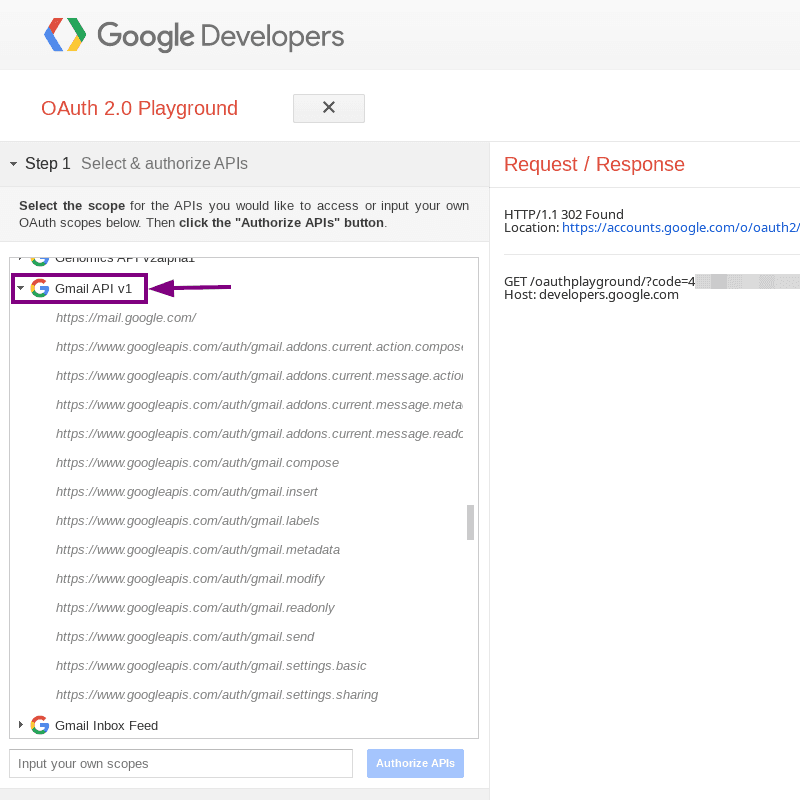
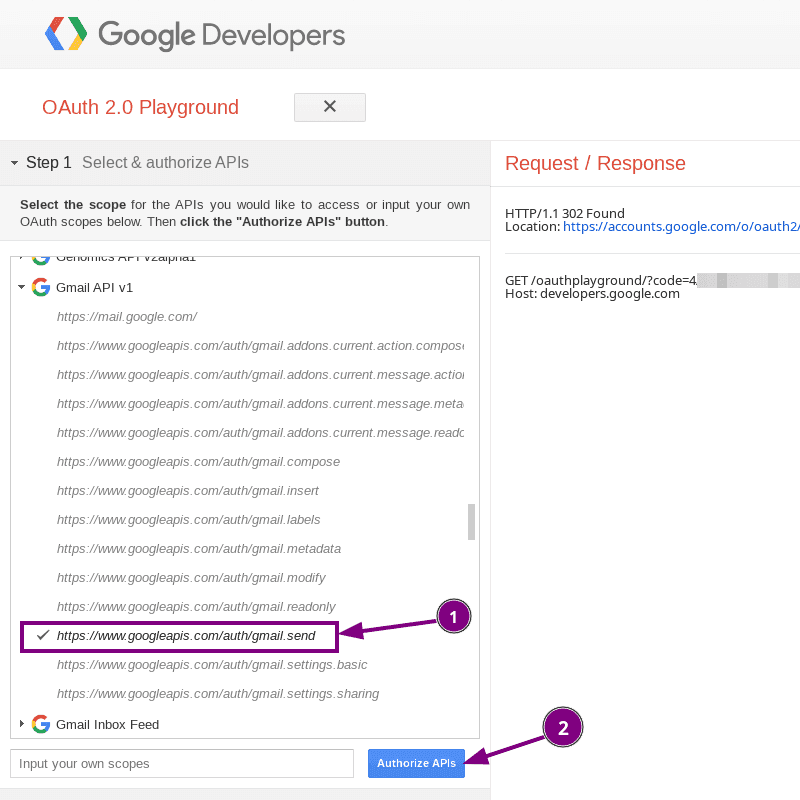
Open the list and select auth/gmail.send;
Press the Autorize APIs button;
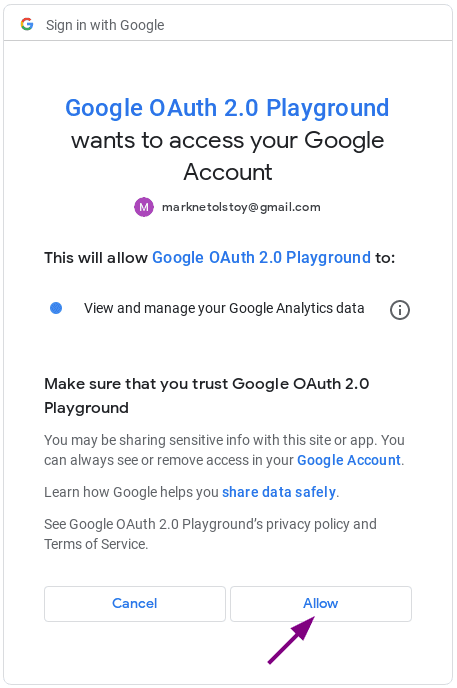
Select the desired Google account;
Press the "Allow" button;
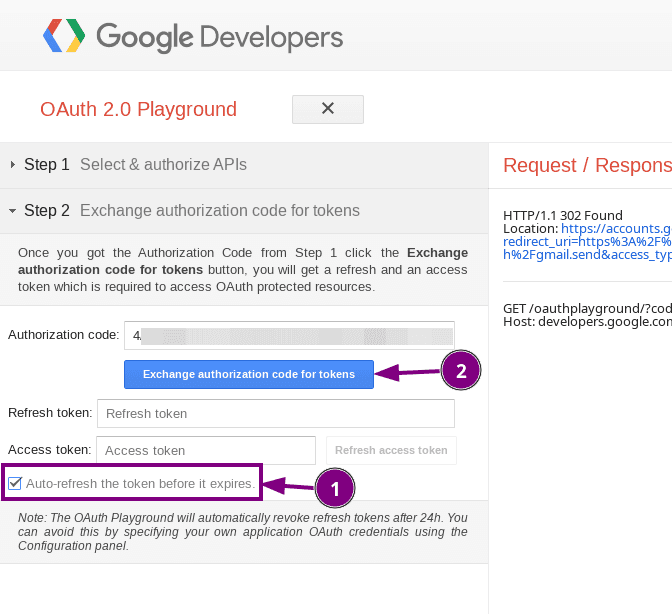
Activate "Auto-refresh the token before it expires";
Click "Exchange authorization code for tokens";
Copy the value of the access_token field from the obtained object into notepad;
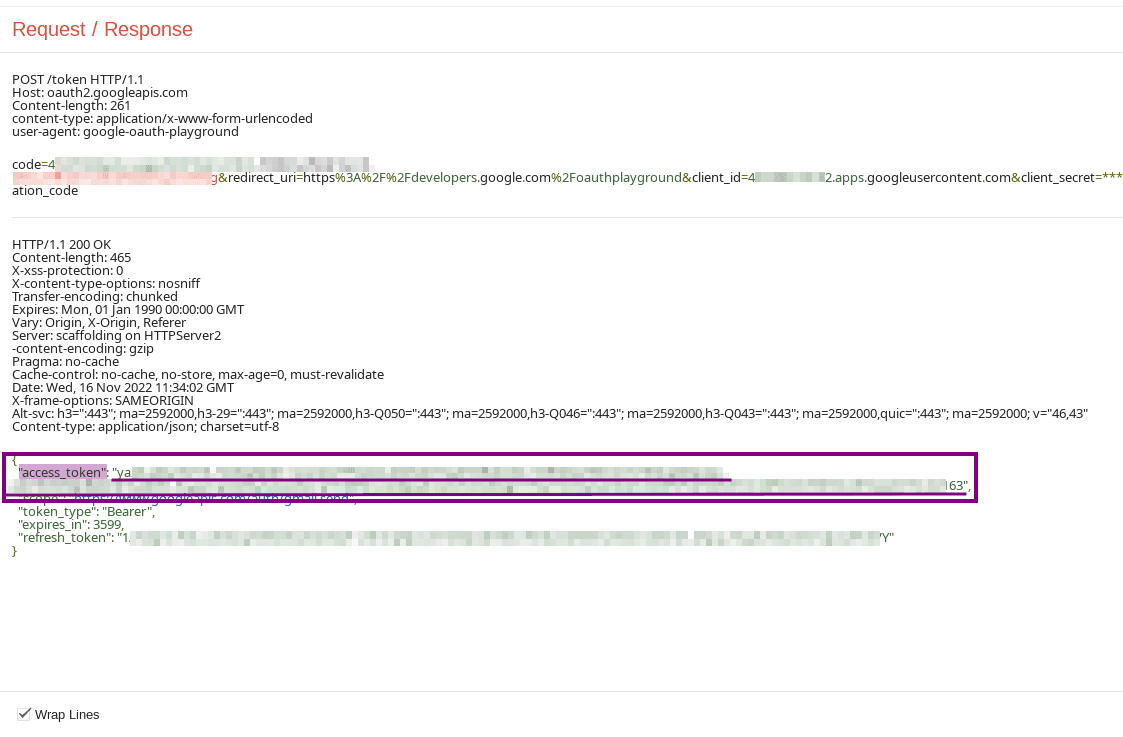
Important! Do not close the page or the token will be reset and cannot be used;
Great, now we have an authorization token which we will use in the integration;

Now you can try automating your business with Latenode        

Basic:

Information:

We have already built this workflow

Click here to deploy it to your free Latenode account

FAQ

Frequently Asked Questions

Latenode integrations with many Google API services require an OAuth access token to authenticate API calls on your behalf.

Found this helpful? Share it →

Written by

Vasiliy Datsenko

Head of Customer Support

Vasiliy Datsenko is Head of Customer Support at Latenode and a product-focused automation writer. His work connects customer conversations, workflow automation research, AI use cases, and practical product education for teams trying to automate real business processes.

Author profile →

Fact checked by

Oleg Zankov

Founder and CEO

Founder and automation product builder behind Latenode. Expert in iPaaS, AI agents, and workflow automation architecture.

Author profile →

Continue reading