

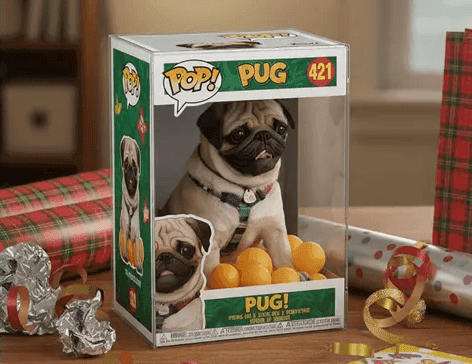
AI keeps getting better at helping us imagine, design, and build things - and now, it’s getting better at visuals, too. Google DeepMind just dropped Nano Banana, a new image generation and editing model inside the Gemini app that pushes creative automation to a new level.
At Latenode, we’re all about blending automation with intelligence - helping creators and teams connect smart AI tools into their daily workflows. Nano Banana fits right in. It doesn’t just make your photos prettier. It helps you rethink how visuals are made, using automation that’s fast, flexible, and delightfully weird (in a good way).
What exactly is Nano Banana?
Nano Banana is Google DeepMind’s latest image generation and editing model - a creative assistant built for control. Instead of relying on one-click filters, it lets you tell the model exactly how to transform your images. Think of it as Photoshop meets imagination, with none of the manual clicking.
Here’s what it can do:
- Keep people or pets consistent across edits (no more morphing dogs).
- Blend multiple photos into one seamless scene.
- Edit just part of an image while keeping the rest untouched.
- Transfer styles from one image to another—like turning a photo into a fantasy game world.
- Preserve fine details, so edits still feel human and natural.
It’s a creative studio that fits in your pocket - no layers, no masks, just prompts.
See Nano Banana in action
The best part? It’s versatile and surprisingly fun. Here are a few examples Google shared that show what it can do:
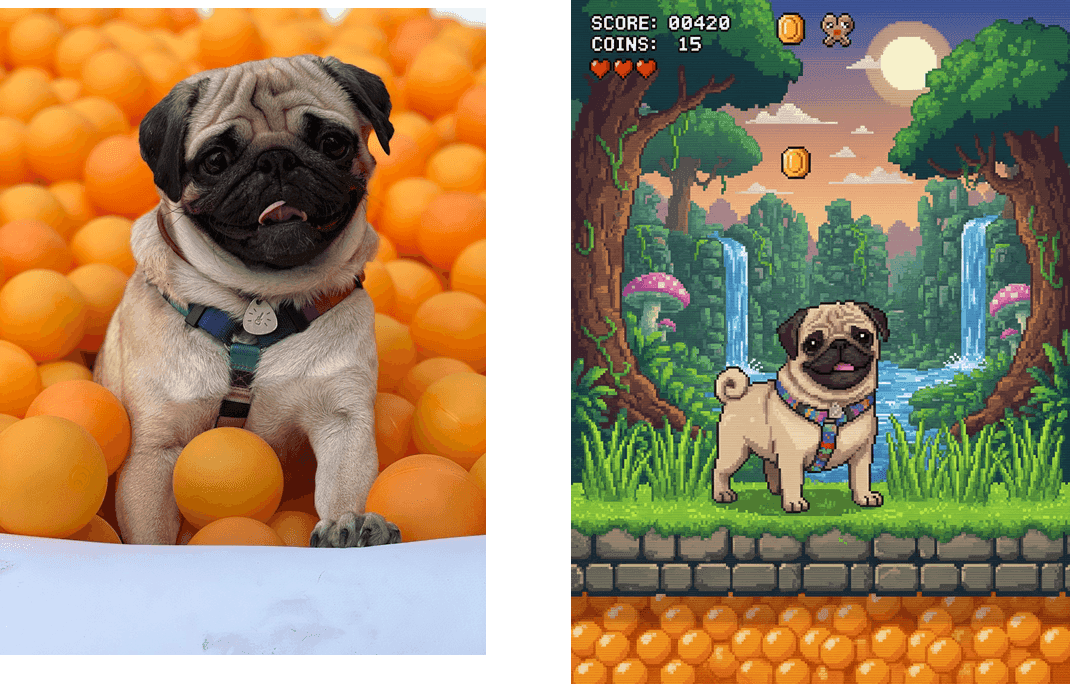
- From pet to pixel art: Turn your dog into a 16-bit video-game character exploring a forest level
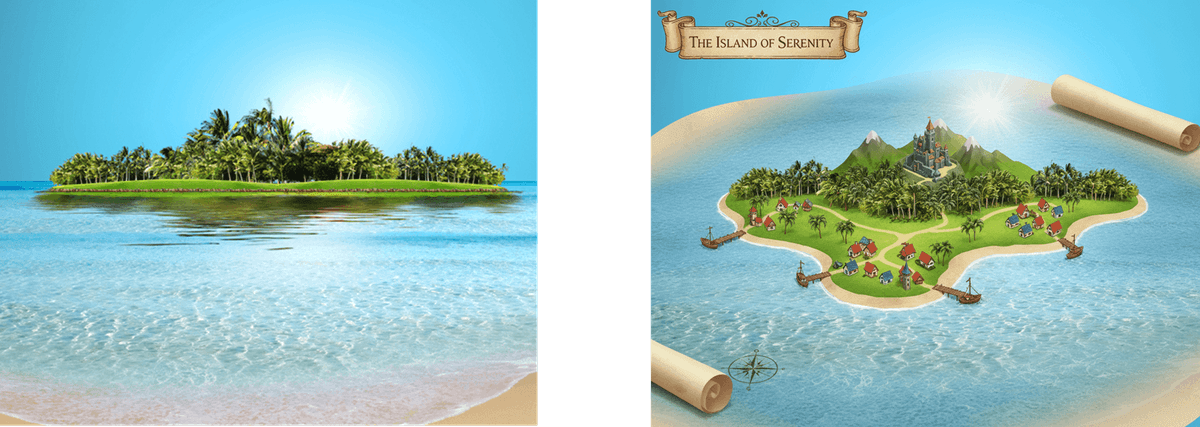
- Fantasy world maps: Transform a real island into a 3D fantasy map complete with tiny ports and mountains.
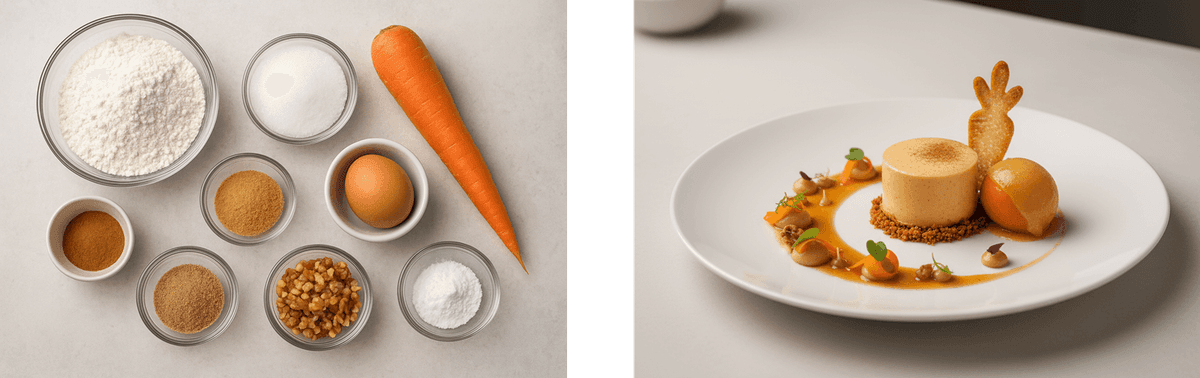
- Culinary creativity: Generate a Michelin-worthy dessert from a handful of raw ingredients.
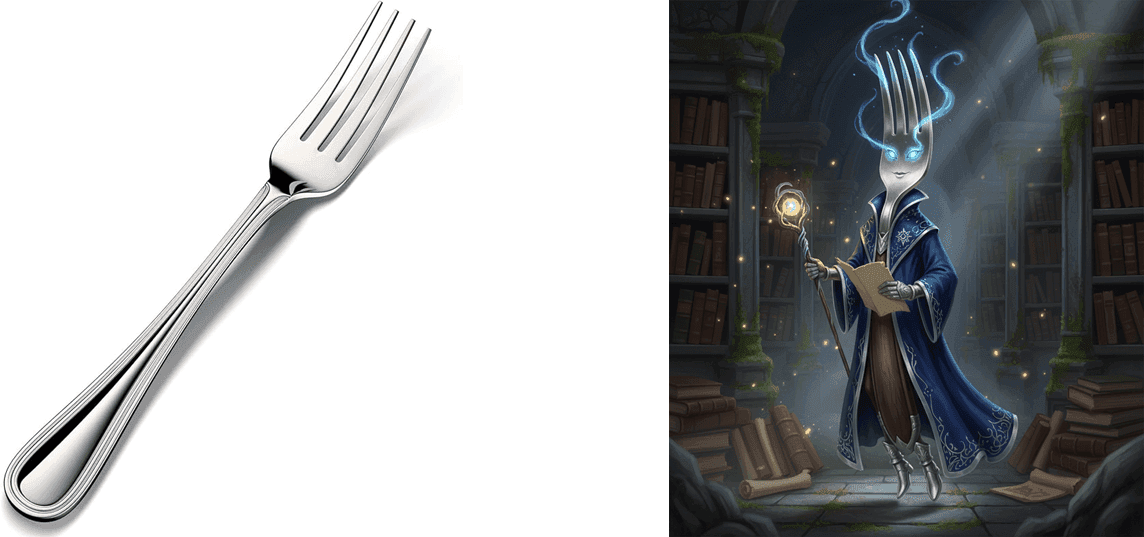
- Everyday magic: Imagine a fork re-designed as a character in a fantasy movie.
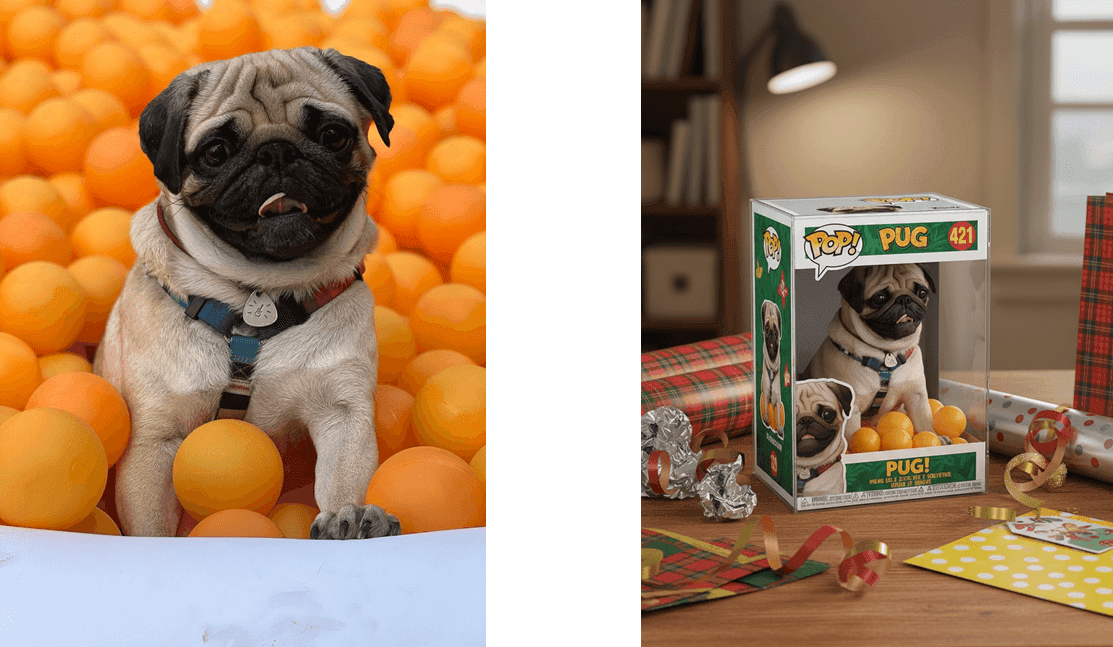
- 3D miniatures: See your cat turned into a collectible figure on your desk.
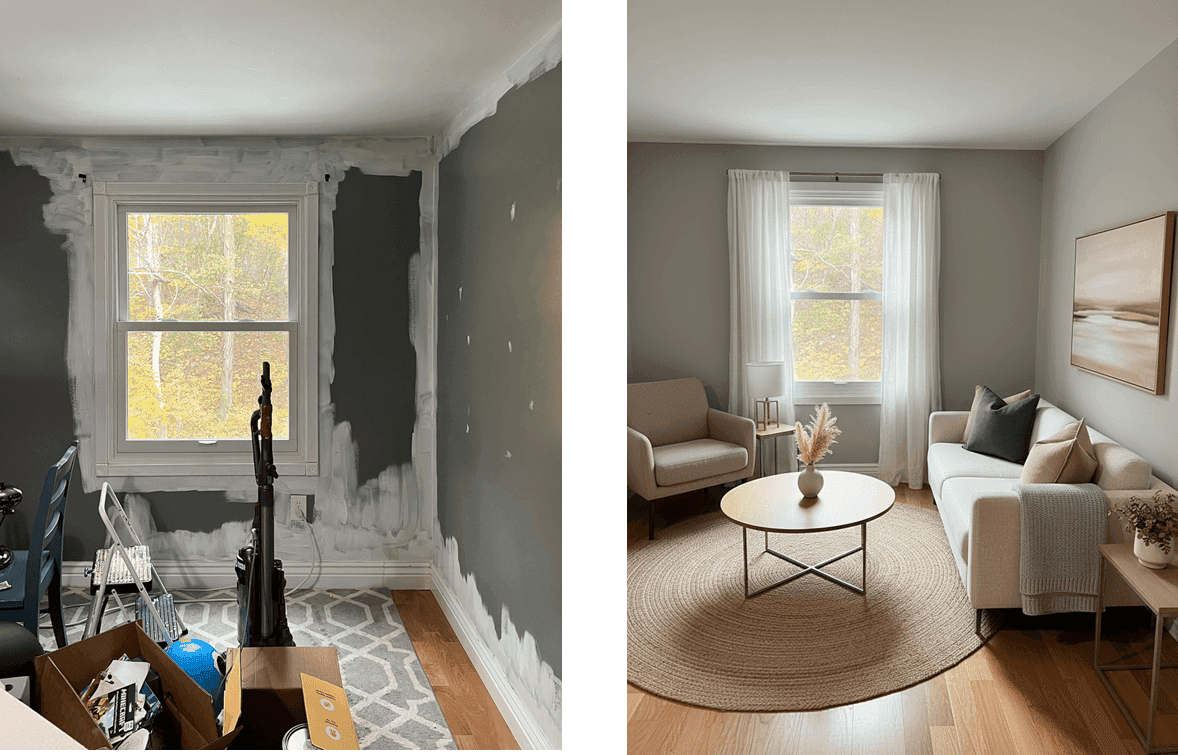
- Home design: Redecorate a room in minimalist style - without hiring a designer.
- Architectural remix: Turn a suburban home into a tropical villa.

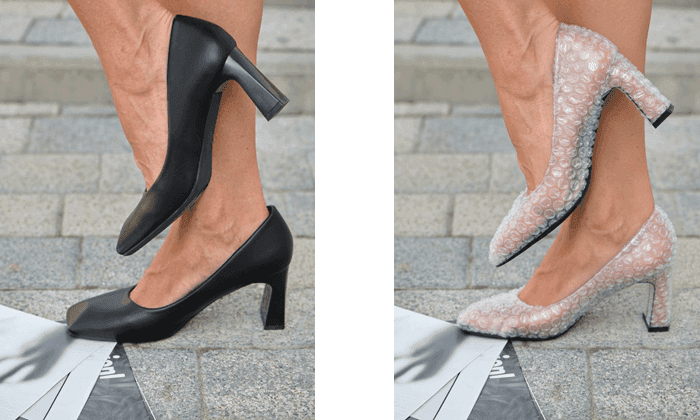
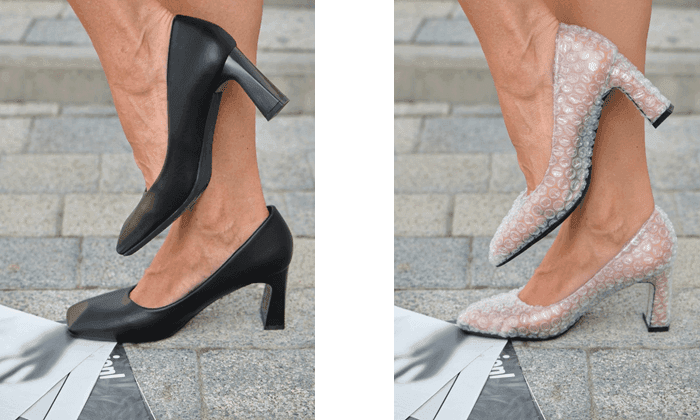
- Viral objects: Make sneakers entirely out of bubble wrap (because why not?).
Each edit feels less like using a tool - and more like co-creating with one.
Why people are losing their minds over Nano Banana
Since its debut, Nano Banana has taken the internet by storm - and not just for its name. Here’s why everyone’s talking about it:
- It’s ridiculously consistent.
- Nano Banana nails character and detail consistency. Whether it’s your pet, a product, or a person, it stays recognizable across completely different edits and prompts.
- Natural language editing actually works.
- You can describe what you want - “make this photo look cinematic” or “turn the cat into a knight” - and it just… does it. No complex layers or filters required.
- It’s smart about blending.
- The model seamlessly combines elements from multiple photos into one coherent image. It’s the kind of visual fusion that used to take hours in Photoshop.
- You get great results fast.
- Early users say it doesn’t take 20 prompt revisions to get something good - Nano Banana delivers creative, clean results almost instantly.
- It’s the most fun AI launch of the year.
- The quirky branding, banana-themed teasers, and surprise drop through the Gemini ecosystem made it go viral. But beyond the memes, the tech really backs it up.
In short, Nano Banana hits that sweet spot between powerful and playful - it’s serious AI wrapped in something you actually want to use.
Now available inside Latenode: No Keys, No Extra Accounts
Here’s the best part: you can use Nano Banana directly inside Latenode, no setup required.
- No API keys.
- No separate billing accounts.
- Just PnP tokens - plug, play, and generate.
That means you can start building creative automation pipelines that use Nano Banana instantly. Want to generate product visuals, creative concepts, or personalized images on-the-fly? You can do all that without juggling extra integrations or logins.
For most teams, that’s not just convenience - it’s a real unlock for speed, experimentation, and cost-efficiency.
Why Nano Banana Matters for Automation
Nano Banana isn’t just another “fun” model - it’s a bridge between creativity and workflow automation.
Here’s how teams are already using it:
- Scale content effortlessly. Generate 10 visual variants of a single marketing concept - automatically.
- Personalize at scale. Turn a customer’s pet into an AI-generated avatar for a thank-you email.
- Integrate into full workflows. Auto-generate mockups from uploaded photos, or dynamically personalize campaign visuals.
- Prototype faster. Build and test design ideas in seconds instead of hours.
With Latenode, Nano Banana becomes more than an art tool - it becomes a creative automation node.
Use Case: From Idea to a Viral Video
Static images are only the start. Combine Nano Banana with Google’s Veo-3 (video generation) inside Latenode, and you’ve got an instant pipeline from idea → image → motion → post.
Here’s how that flow looks:
- Generate visuals with Nano Banana (say, bubble-wrap shoes or pixel-art pets).
- Animate them using Veo-3’s video generation.
- Publish automatically to TikTok, Instagram Reels, or YouTube Shorts.
With Latenode, you can automate every step:
- Generate an idea
- Create visuals
- Turn them into videos
- Post them automatically
You’ve just built a viral content engine - without touching a camera.

Try this ready-made template on Latenode
The Future of Creative Automation
Nano Banana isn’t just another model release - it’s a sign of what’s next: AI models as creative teammates.
And Latenode is the place where those teammates come to work together.
With support for 1000+ apps, RAG memory, and multi-agent coordination, you can connect tools like ChatGPT, Stable Diffusion, and Nano Banana into one unified workflow - no code needed.
That means less manual work, faster iteration, and more space for innovation.
Try Nano Banana on Latenode today
Creativity moves fast - your workflows should too. Use PnP tokens to experiment instantly, and see how AI-powered visuals can become part of your everyday automation.
👉 Start building with Nano Banana in Latenode: template